
Working With Multiple Checklists
You may have multiple checklists for the same record page: either multiple instances of the same checklist or just different checklists for the same record.
The new summer release comes with some great new functionality for these use cases:
-
Multiple instances of the same checklist can be created either by the user (new button) or programmatically via a Flow, e.g. for periodic checklist. Moreover, it is possible to add filter criteria, such that users e.g. only see checklists that have not yet been completed.
-
Multiple checklists can either be shown as separate components, or can be shown within a single component.
This video demoes these new capabilities.
More Compact Layout
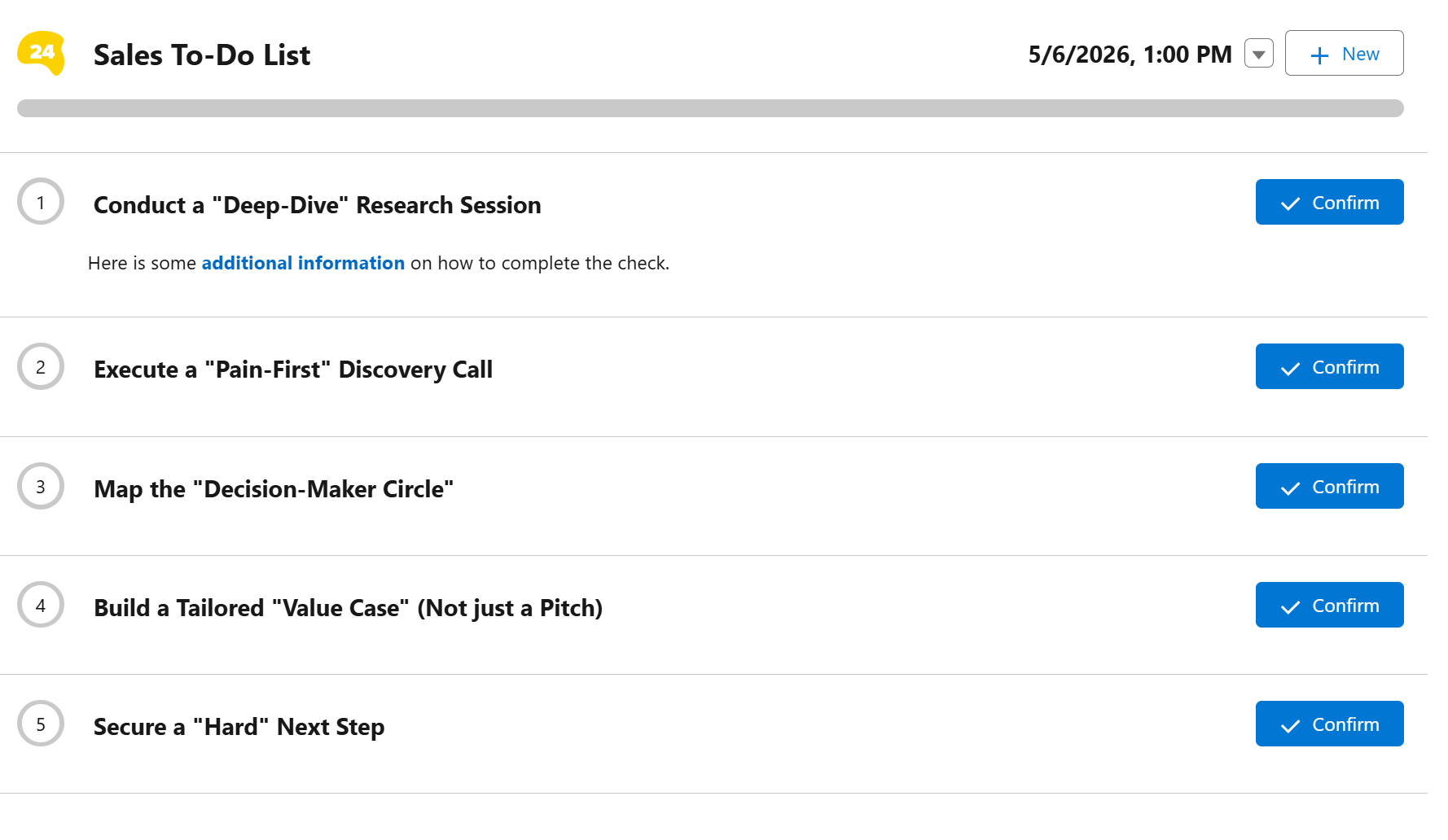
We have updated the layout of checklist such that they are much more compact. In addition, we now support different sizes of the YES/NO button. So less scrolling and a more compact design for e.g. To-Do Lists.
Using Checklists in Salesforce Reports
Many customers use Salesforce Reports to report on Checklist Results. You may want to combine records from Checklist Results with those of the relates Objects such as Cases or Opportunities.
This video shows you how to best make use of this capability.
We All Make Mistakes
When you made an error when confirming a check, there was no straightforward way to correct it. An admin had to remove the corresponding Check Result. Now, it is possible to display an Undo button on the checklist itself. The Undo button is controlled by a permission set, in case you only want certain users to use this capability.
Add A Comment to a Check
24Checklist already allowed to upload pictures or add a file to check, but now users can also add comments.
Do Not Lose Your Checklist Results
In the past, when you refreshed the record page, all unconfirmed Check Results were lost. This is no longer the case.
Subreleases
24Checklist v2.10 to v2.15